
TL;DR
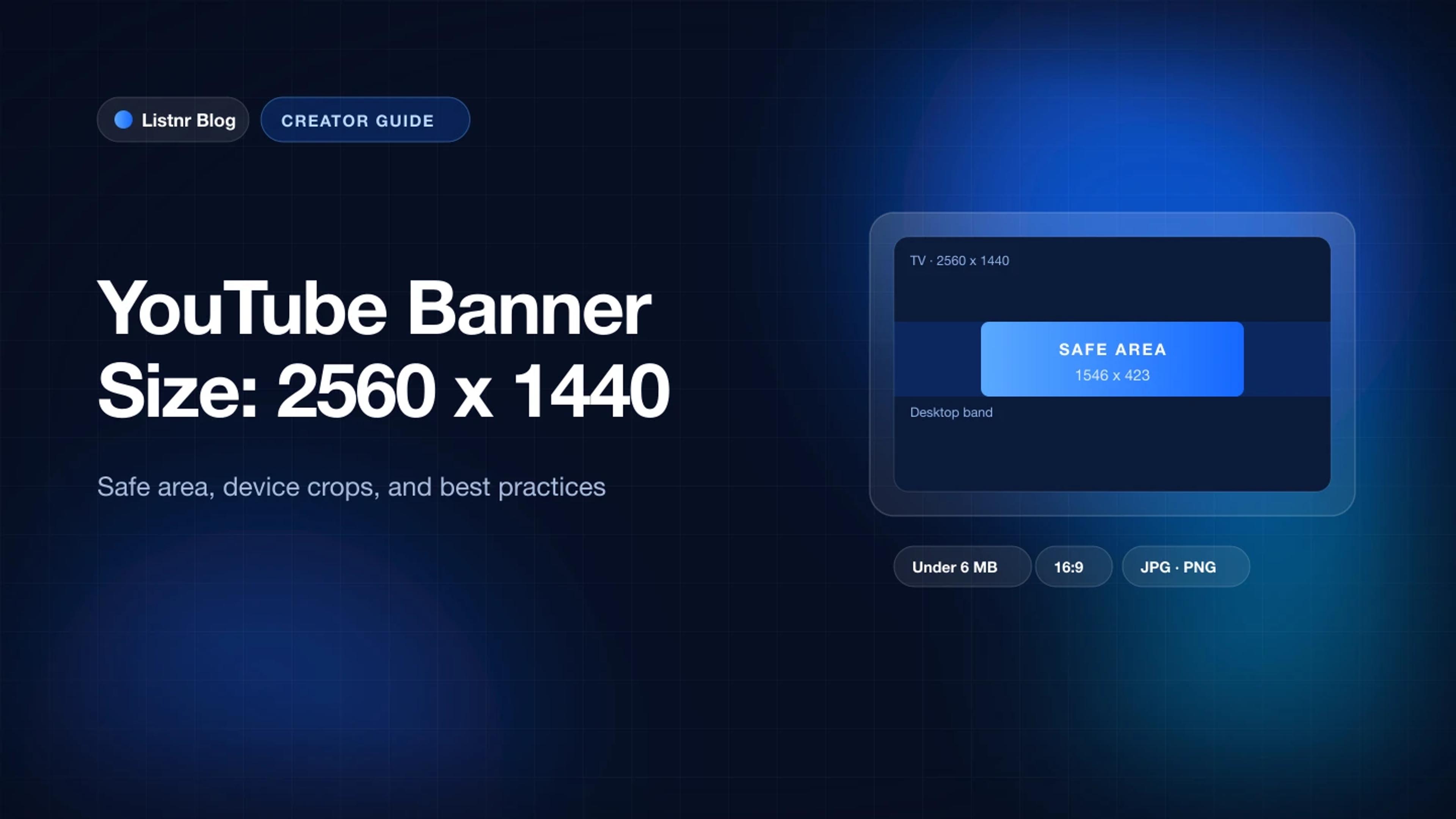
This guide gives you the exact numbers to design around: the recommended size, the minimum upload size, the safe area that shows on every device, and the file limits YouTube enforces.
YouTube Banner Size: Ideal Dimensions, Safe Area, and Best Practices
Your YouTube banner is the first thing people see when they land on your channel, and it is shown at completely different shapes depending on the screen. On a TV, viewers see the whole image. On a phone, they see a thin strip from the middle. If your name or upload schedule sits outside that strip, most of your audience never sees it.
This guide gives you the exact numbers to design around: the recommended size, the minimum upload size, the safe area that shows on every device, and the file limits YouTube enforces. After that, it covers how to lay out a banner that works everywhere, the mistakes that get banners cropped or blurry, and how to upload and check yours.
The Short Answer
The ideal YouTube banner size is 2560 x 1440 pixels (16:9), under 6 MB, with all text and logos inside the centered 1546 x 423 pixel safe area. The smallest image YouTube accepts is 2048 x 1152 pixels, where the safe area is 1235 x 338 pixels.
| Spec | Value |
|---|---|
| Recommended size | 2560 x 1440 px |
| Minimum upload size | 2048 x 1152 px |
| Aspect ratio | 16:9 |
| Safe area (at 2560 x 1440) | 1546 x 423 px, centered |
| Safe area (at 2048 x 1152) | 1235 x 338 px, centered |
| Maximum file size | 6 MB |
| File formats | JPG, PNG, BMP, or non-animated GIF |
If you remember one rule, make it this: design for the full 2560 x 1440 canvas, but keep everything important inside the middle 1546 x 423.
Why Two Safe Area Numbers Exist
You will see both 1546 x 423 and 1235 x 338 quoted as "the" safe area. Both are correct. They describe the same proportional zone at two different canvas sizes.
YouTube's own help page lists the minimum upload of 2048 x 1152 with a 1235 x 338 safe area. Most designers work at 2560 x 1440 for extra sharpness on large screens, and the same zone scales up to roughly 1546 x 423 on that canvas. Use the safe area that matches the size you are designing at.
What Each Device Shows
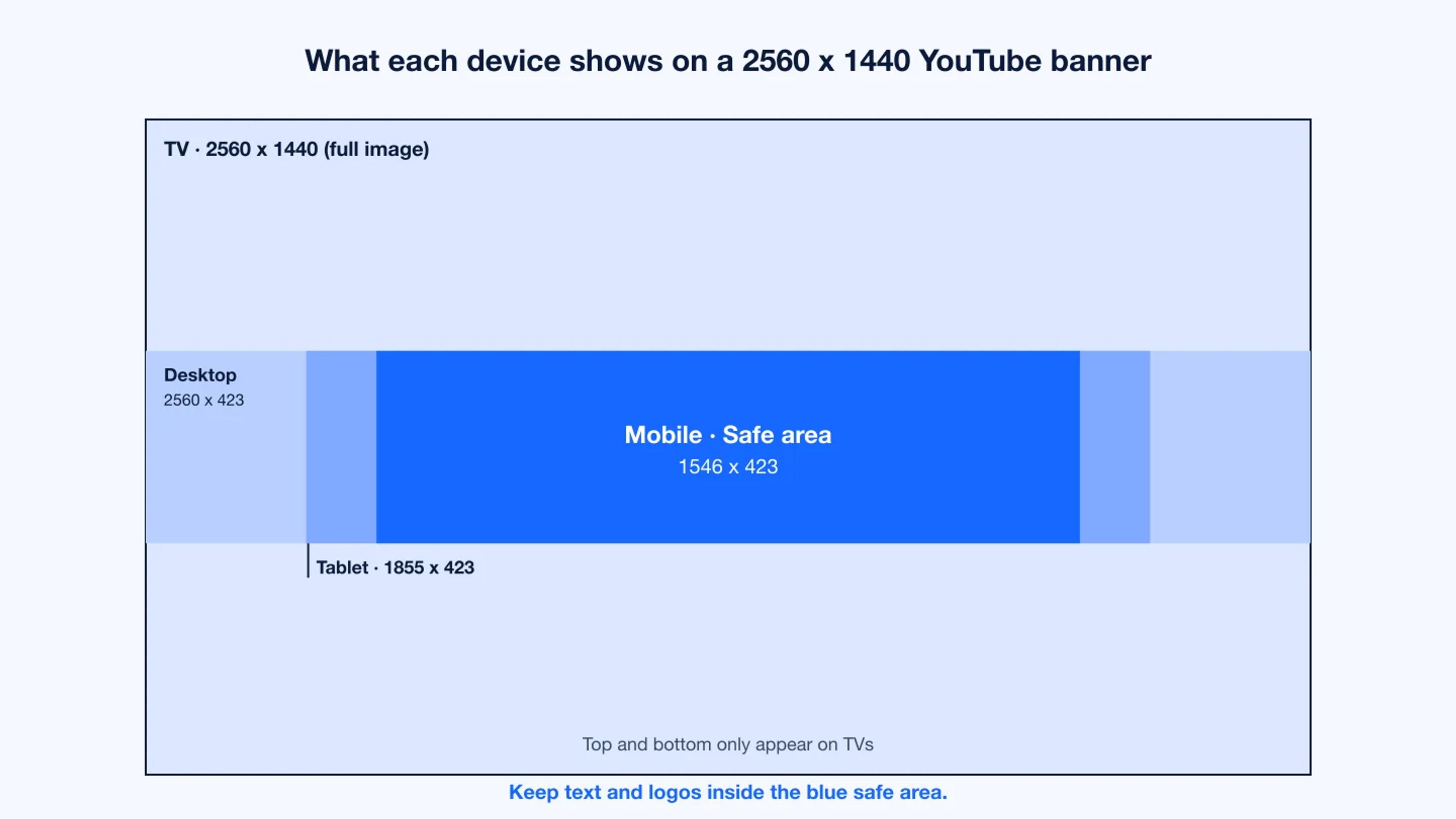
YouTube crops your banner to fit each screen. Everything stays centered, so the middle of the image is the only part every device shares.
| Device | Visible area (on a 2560 x 1440 banner) |
|---|---|
| TV | 2560 x 1440 (the full image) |
| Desktop | 2560 x 423 (full width, thin horizontal band) |
| Tablet | 1855 x 423 |
| Mobile | 1546 x 423 (the safe area only) |
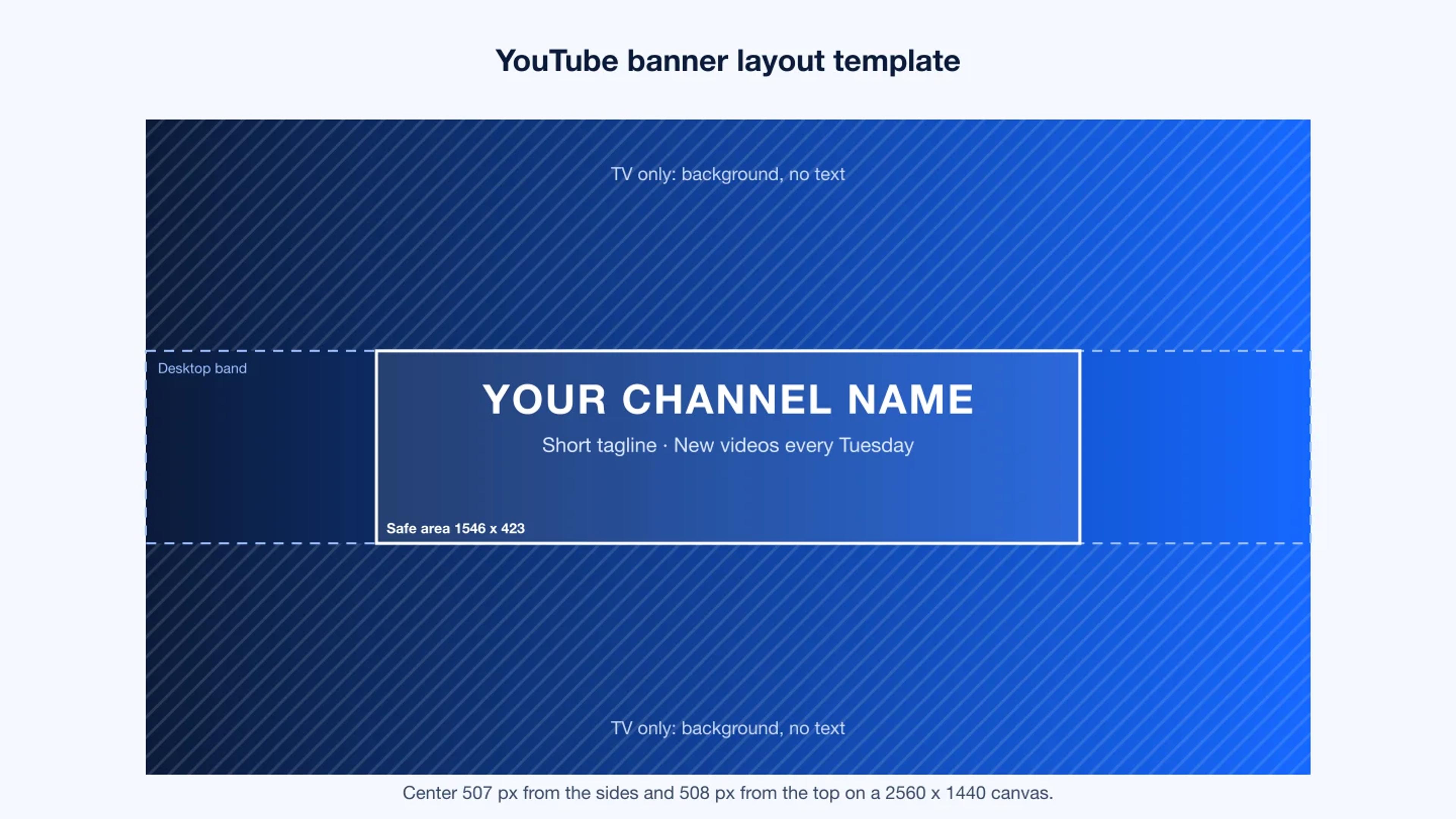
Two things follow from this. First, the top and bottom of your banner only appear on TVs, so treat them as background. Second, the left and right edges disappear on tablets and phones, so do not put anything there that a viewer needs to read.
How to Lay Out a YouTube Banner That Works Everywhere
1. Start with a 2560 x 1440 canvas
Set your design file to 2560 x 1440 at 72 PPI in RGB. Working at the recommended size keeps the banner crisp on large monitors and TVs, and gives YouTube more detail to work with when it compresses the image.
2. Mark the safe area before you design
Draw a 1546 x 423 rectangle and center it on the canvas. That works out to about 507 pixels in from the left and right edges and about 508 pixels down from the top. Lock it as a guide layer. Everything a viewer must read goes inside it.
3. Put essentials in the middle
The safe area is small, so be selective. Most channels only need:
- Channel name or logo
- A short tagline that says what the channel is about
- Upload schedule, such as "New videos every Tuesday"
Social handles and URLs are better placed in your channel links, which YouTube shows next to the banner, than inside the image.
4. Extend the background to the edges
Fill the rest of the canvas with a background that still looks good when it is cropped: a gradient, a texture, a wide photo, or a pattern. Desktop viewers see the full width of the band, and TV viewers see everything, so avoid hard empty edges.
5. Leave room for the profile picture and buttons
On desktop, your profile picture, channel name, and Subscribe button sit just below the banner. On mobile, they sit over or just under it depending on the app version. Keep the very bottom of the safe area simple so your banner does not compete with them.
6. Export at the right size and format
Export as JPG for photographic banners or PNG for flat graphics with text. Keep the file under 6 MB. If a PNG comes out too large, export a high-quality JPG instead rather than shrinking the dimensions.
YouTube Banner Best Practices
Make the text readable at phone size. On a phone, your banner is only a few centimeters tall. Use a bold font, keep the tagline to a few words, and check that it reads clearly at 25 percent zoom.
Use high contrast. Light text on a busy photo disappears once the image is compressed. Add a darker overlay or a solid shape behind text.
Match your thumbnails and branding. Use the same colors, fonts, and logo as your thumbnails and profile picture so the channel feels consistent when someone lands on it from a video.
Say what the channel is for. A new visitor decides whether to subscribe in seconds. "Weekly budget recipes" does more work than a logo on its own.
Update it when something changes. A new series, a schedule change, or a seasonal campaign is a good reason to refresh the banner. It is free and takes minutes.
Avoid fine detail in the edges. Thin lines, small text, and detailed illustrations near the edges are the first things to be cropped or blurred.
Common YouTube Banner Mistakes
Text outside the safe area. This is the most common problem. It looks fine on a laptop and gets cut off on phones, where most viewers browse.
Uploading a small image and letting YouTube scale it. Banners smaller than 2048 x 1152 are rejected. Images that only just meet the minimum can look soft on TVs and large monitors.
Wrong aspect ratio. A square or 3:1 image gets cropped unpredictably. Always start with a 16:9 canvas.
Too much information. Five social handles, a website, an email address, and a schedule will not fit the safe area at a readable size. Move links to the channel's links section.
Animated GIFs. YouTube banners do not animate. An animated GIF is uploaded as a still frame, so use a static image.
How to Upload or Change Your YouTube Banner
- Sign in to YouTube and open YouTube Studio.
- Click Customization in the left menu, then open the Profile tab (labeled Branding in some versions).
- Under Banner image, click Upload or Change.
- Select your image. YouTube shows a preview of how it will appear on TV, desktop, and mobile.
- Adjust the crop if needed so your safe area content stays visible in every preview, then click Done.
- Click Publish.
On the YouTube mobile app, tap your profile picture, tap Your channel, tap the pencil icon, then tap the banner to change it.
After publishing, check your channel on an actual phone. The preview in YouTube Studio is close, but a quick look on the device your viewers use is the most reliable test.
Other YouTube Image Sizes Worth Knowing
While you are working on channel branding, these are the other images you will need.
| Image | Recommended size | Notes |
|---|---|---|
| Banner | 2560 x 1440 px | Safe area 1546 x 423, under 6 MB |
| Profile picture | 800 x 800 px | Shown as a circle, as small as 98 x 98 px |
| Video thumbnail | 1280 x 720 px | 16:9, minimum width 640 px |
| Video watermark | 150 x 150 px | Square, transparent PNG works best |
Make the Rest of Your Channel Match
A strong banner gets people to stay on your channel page. What keeps them is the content, and for a lot of channels the voice is a big part of that.
If you run a faceless channel, publish explainers, or need a channel trailer, Listnr lets you turn a script into natural, realistic voiceover in minutes. You can choose from thousands of voices across 140+ languages and accents, adjust pacing and pauses, and download the audio as an MP3 for your editor. Listnr Studio can also turn a script into a finished short video with voiceover, so your trailer, Shorts, and long-form uploads can keep the same voice your viewers recognize.
A simple channel trailer workflow:
- Write a 30 to 60 second script that says who the channel is for, what you post, and when.
- Paste it into Listnr and pick a voice that matches your banner and thumbnail style.
- Generate the voiceover, listen back, and add pauses where your visuals change.
- Pair the audio with clips or visuals, then set it as your channel trailer in YouTube Studio under Customization > Layout.
FAQs
What is the best size for a YouTube banner?
The best size for a YouTube banner is 2560 x 1440 pixels in a 16:9 aspect ratio, with a file size under 6 MB. Keep your channel name, logo, and any text inside the centered 1546 x 423 pixel safe area so they appear on every device.
What is the minimum YouTube banner size?
The minimum YouTube banner size is 2048 x 1152 pixels. YouTube rejects smaller images. At this size, the safe area for text and logos is 1235 x 338 pixels.
Why is my YouTube banner cut off on mobile?
Phones only show the centered safe area of your banner, about 1546 x 423 pixels on a 2560 x 1440 image. Anything outside that zone is cropped. Move text and logos into the middle of the image and check the mobile preview in YouTube Studio before publishing.
Why does my YouTube banner look blurry?
Banners usually look blurry because the original image was too small, was upscaled, or was heavily compressed. Design at 2560 x 1440, export as a high-quality JPG or PNG under 6 MB, and avoid thin text or fine detail that compression softens.
Can a YouTube banner be animated?
No. YouTube banners are static images. You can upload a GIF, but only a non-animated one is supported, so animation will not play.
How often should I change my YouTube banner?
Update your banner whenever your channel changes in a way new visitors should know about, such as a new series, a new upload schedule, or a rebrand. Seasonal or campaign banners are also a simple way to keep the channel looking active.
Conclusion
The numbers are simple once you have them in one place: design at 2560 x 1440, keep the file under 6 MB, and put everything that matters inside the centered 1546 x 423 safe area. Fill the rest with background that still looks good when cropped, then check the result on a phone before you call it done.
Your banner tells new visitors what your channel is about in a second. Pair it with consistent thumbnails and a recognizable voice across your videos, and the channel page starts doing real work for you.
Sources
Frequently asked questions
What is the best size for a YouTube banner?
The best size for a YouTube banner is 2560 x 1440 pixels in a 16:9 aspect ratio, with a file size under 6 MB. Keep your channel name, logo, and any text inside the centered 1546 x 423 pixel safe area so they appear on every device.
What is the minimum YouTube banner size?
The minimum YouTube banner size is 2048 x 1152 pixels. YouTube rejects smaller images. At this size, the safe area for text and logos is 1235 x 338 pixels.
Why is my YouTube banner cut off on mobile?
Phones only show the centered safe area of your banner, about 1546 x 423 pixels on a 2560 x 1440 image. Anything outside that zone is cropped. Move text and logos into the middle of the image and check the mobile preview in YouTube Studio before publishing.
Why does my YouTube banner look blurry?
Banners usually look blurry because the original image was too small, was upscaled, or was heavily compressed. Design at 2560 x 1440, export as a high-quality JPG or PNG under 6 MB, and avoid thin text or fine detail that compression softens.
Can a YouTube banner be animated?
No. YouTube banners are static images. You can upload a GIF, but only a non-animated one is supported, so animation will not play.
How often should I change my YouTube banner?
Update your banner whenever your channel changes in a way new visitors should know about, such as a new series, a new upload schedule, or a rebrand. Seasonal or campaign banners are also a simple way to keep the channel looking active.
Sources
YouTube Help · Primary reference for YouTube banner upload requirements, minimum dimensions, safe area guidance, file size, and supported image formats.
YouTube · General creator resource for channel setup, publishing, and growth context.
Listnr · Referenced for matching channel branding with consistent AI voiceover and channel trailer workflows.
About Listnr Team
Listnr Team writes and curates content for the Listnr editorial workflow.