
TL;DR
This guide shows exactly where that setting lives on iPhone, CarPlay, Mac, and Apple Watch, how to control when and how loudly Maps speaks, and what to do when a new voice refuses to download or Maps keeps using the old one.
How to Change the Voice on Apple Maps (iPhone, CarPlay, Mac, and Apple Watch)
Apple Maps does not have its own voice menu. Every spoken turn, lane warning, and "arriving at your destination" comes from Siri, so the voice you hear in the car is whatever Siri voice your iPhone is set to. That is why people search the Maps settings, find only volume controls, and assume the voice cannot be changed. It can. You just change it in a different place.
This guide shows exactly where that setting lives on iPhone, CarPlay, Mac, and Apple Watch, how to control when and how loudly Maps speaks, and what to do when a new voice refuses to download or Maps keeps using the old one. If you came here hoping to put a custom or celebrity voice into Apple Maps, there is an honest answer for that near the end too.
The Short Answer
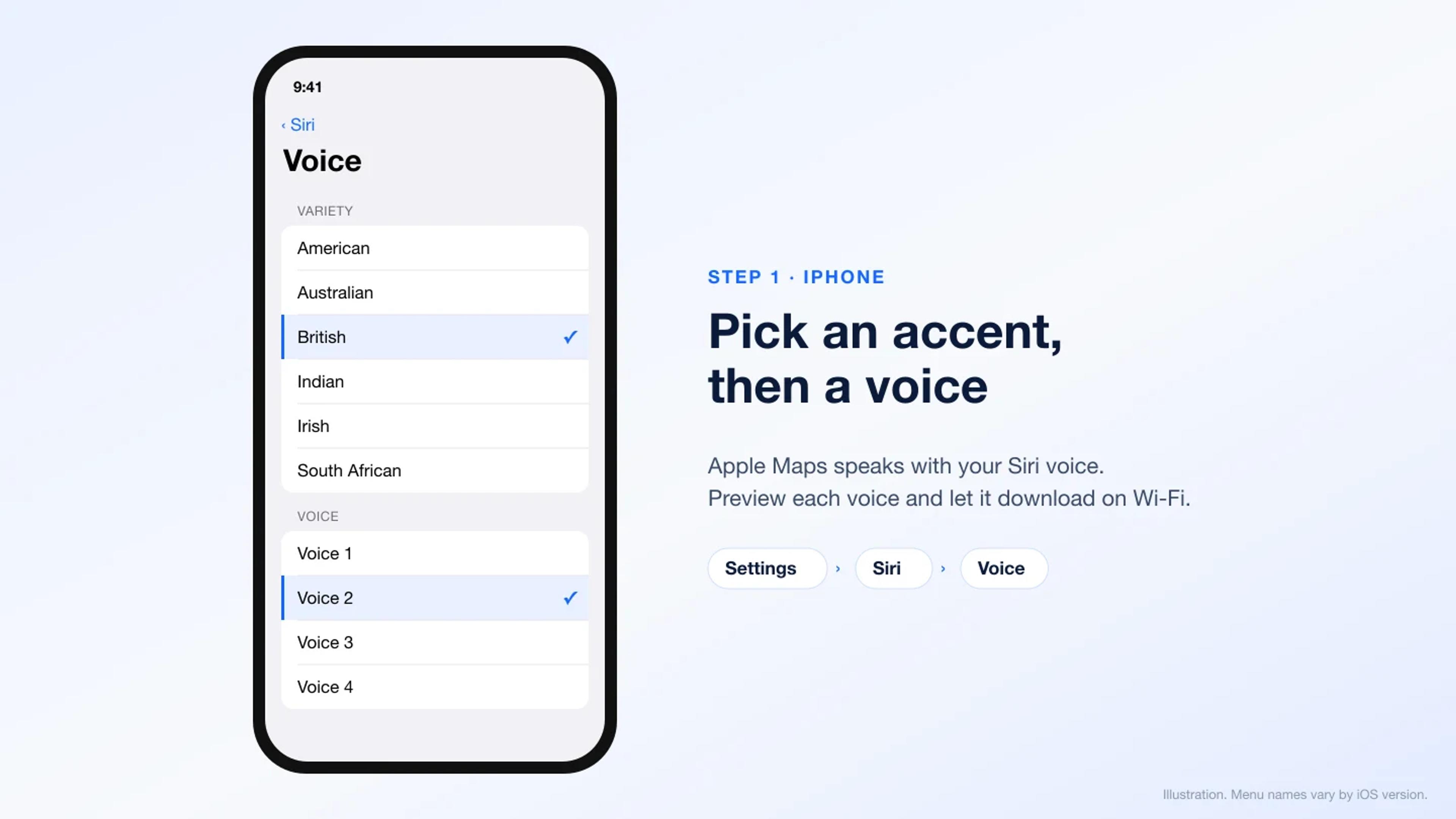
To change the Apple Maps voice, change your Siri voice. On iPhone, open Settings > Siri (called Apple Intelligence & Siri on devices that support Apple Intelligence), tap Voice, then choose a Variety (accent) and a Voice. Apple Maps uses the new voice the next time it gives spoken directions, including through CarPlay.
| Device | Where to change the voice | Notes |
|---|---|---|
| iPhone and iPad | Settings > Siri > Voice | Also controls the CarPlay voice |
| CarPlay | Change it on the connected iPhone | CarPlay has no separate voice setting |
| Mac | System Settings > Siri > Voice | Mac Maps is mostly used for planning routes |
| Apple Watch | Settings > Siri on the watch | Turn-by-turn on the watch leans on haptic taps |
What You Can Actually Change
Before you start tapping through menus, it helps to know what Apple lets you customize and what it does not.
Accent (Variety). English Siri comes in several regional varieties, including American, Australian, British, Indian, Irish, and South African. Other languages offer their own regional options.
Voice. Each variety has a set of numbered voices, such as Voice 1 through Voice 5 for American English. Apple stopped labeling them male or female, so the quickest way to choose is to tap each one and listen to the preview.
Language. Maps speaks in your Siri language. Changing the language changes the guidance language too, and it also changes the language Siri listens for, so only do this if you are comfortable speaking to Siri in it.
Volume and timing. These live in the Maps settings rather than the Siri settings. You can make directions louder or quieter, mute them entirely, or have them pause podcasts and audiobooks while Maps speaks.
What you cannot do is load a third-party voice, a celebrity voice, or your own recorded voice into Apple Maps. The only voices available are the Siri voices Apple ships.
How to Change the Apple Maps Voice on iPhone and iPad
- Open the Settings app.
- Tap Siri. On an iPhone or iPad that supports Apple Intelligence, this menu is called Apple Intelligence & Siri.
- Tap Voice (shown as Siri Voice on some versions of iOS).
- Under Variety, choose the accent you want.
- Under Voice, tap each option to hear a preview, then leave the one you like selected.
- Wait for the voice to finish downloading. You will see a small progress indicator next to it. Stay on Wi-Fi until it completes.
- Open Apple Maps and start a short route to confirm the new voice is speaking the directions.
If you also want to change the guidance language, tap Language on the same Siri screen first, pick the language, then choose a variety and voice for it.
How to Change the Apple Maps Voice in CarPlay
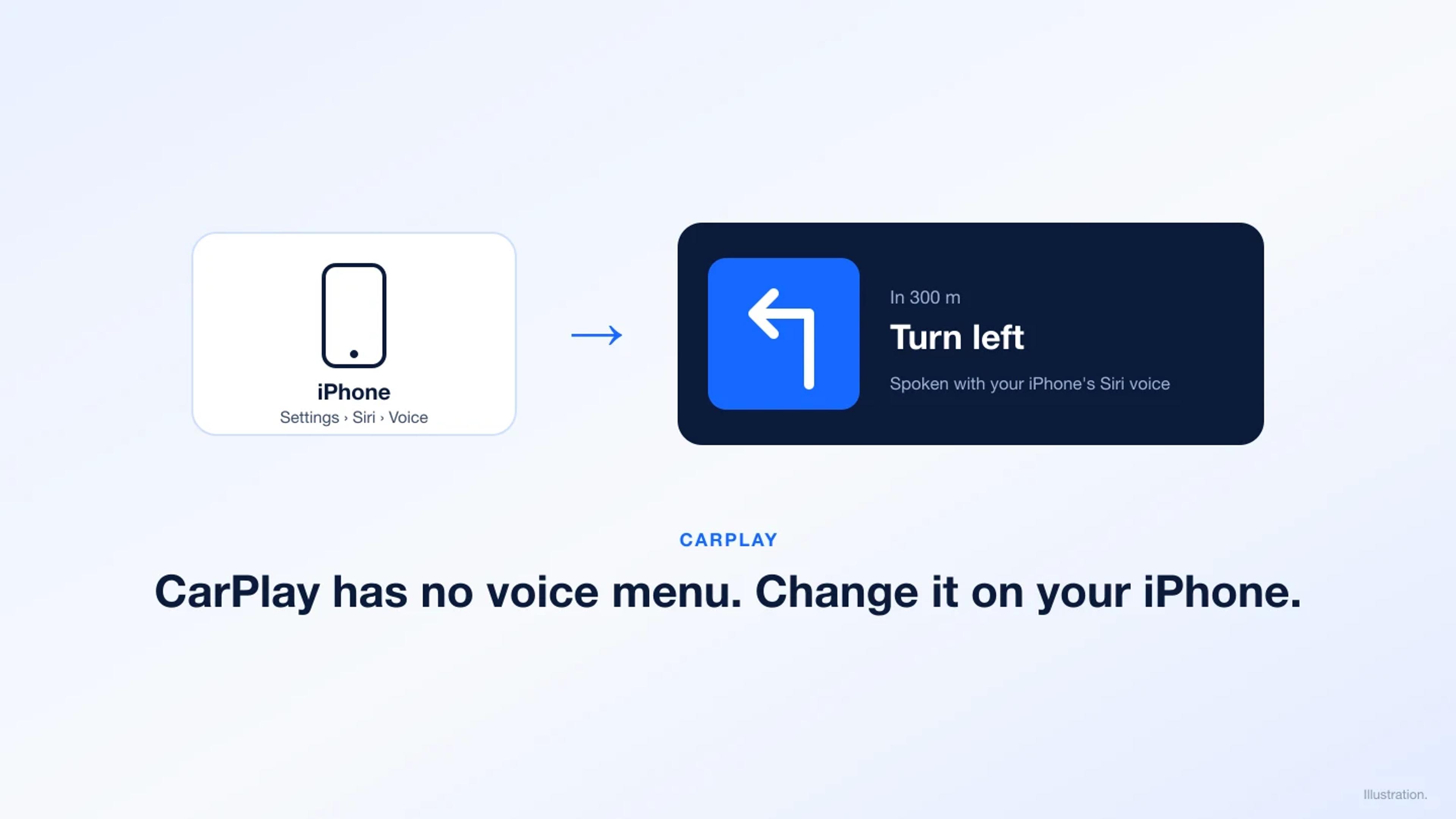
CarPlay mirrors Apple Maps from your iPhone onto the car's display, and the audio comes from your iPhone too. There is no voice picker on the CarPlay screen, so you change it on the phone.
- Park the car, or have a passenger do this.
- On your iPhone, go to Settings > Siri > Voice and pick a new variety and voice, as described above.
- Let the voice finish downloading. If your phone is only on cellular data, it may wait for Wi-Fi.
- Reconnect to CarPlay, or start a new route. The next spoken direction uses the new voice.
While you are navigating in CarPlay, you can still adjust how much Maps talks. Tap the route card at the bottom of the screen, then tap the speaker icon to choose louder, quieter, or no voice guidance.
How to Change the Apple Maps Voice on Mac
Maps on a Mac is mainly used to plan a route and send it to your iPhone, but it follows the Mac's Siri voice when it speaks.
- Click the Apple menu and open System Settings.
- Click Siri in the sidebar (called Apple Intelligence & Siri on Macs that support it).
- Next to Voice, click Select.
- Choose a Variety and a Voice, preview it, then click Done.
Changing the voice on your Mac does not change it on your iPhone. Each device keeps its own Siri voice, so if the goal is better directions in the car, change it on the phone.
How to Change the Apple Maps Voice on Apple Watch
On Apple Watch, turn-by-turn directions are mostly delivered as distinct taps on your wrist, so you can feel a turn coming without looking or listening. Spoken guidance usually comes from your paired iPhone or headphones.
If you want the watch's own Siri voice to match:
- On your Apple Watch, open Settings.
- Tap Siri, then tap Siri Voice.
- Choose a Variety and a Voice.
The new voice applies the next time Siri or Maps speaks on the watch.
How to Control Volume and Timing of Apple Maps Directions
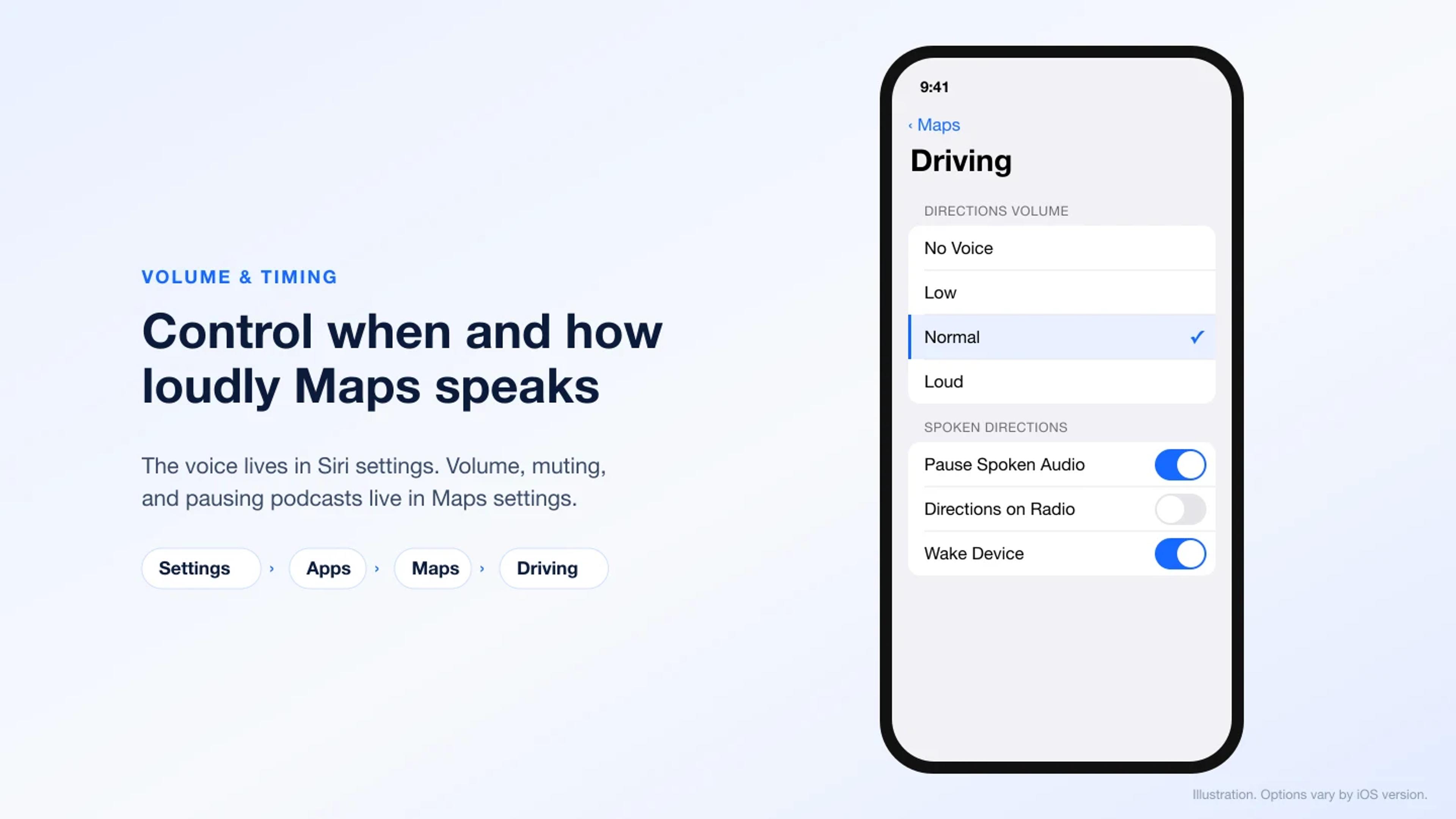
Changing the voice fixes how directions sound. These settings fix when and how loudly you hear them.
From the Settings app
Go to Settings > Apps > Maps (on older versions of iOS, Settings > Maps), then open Driving or Spoken Directions. Depending on your iOS version you will see options like:
- Directions Volume: choose No Voice, Low, Normal, or Loud.
- Pause Spoken Audio: pauses podcasts and audiobooks while Maps speaks, then resumes them.
- Directions on Radio: plays directions over the car speakers when you are listening to the radio through CarPlay.
- Wake Device: lights up your iPhone screen before each turn.
During navigation
Tap the route card at the bottom of the Maps screen, then tap the speaker icon. You can switch between full voice guidance, alerts only, and no voice without leaving your route. This is the fastest fix if directions are suddenly too loud on a quiet road at night.
Apple Maps Voice Not Changing? Try These Fixes
The new voice will not download. Siri voices download over Wi-Fi, and each one needs free storage. Connect to Wi-Fi, check Settings > General > iPhone Storage, and free up space if you are nearly full. Then go back to the Voice screen and select the voice again.
Maps still uses the old voice. End the current route and start a new one. If that does not help, restart your iPhone. A route that was already running when you switched voices can keep the previous voice until it finishes.
CarPlay plays the old voice. Disconnect and reconnect CarPlay after the new voice has fully downloaded. If your car connects wirelessly, turning the car's infotainment system off and on also forces a fresh connection.
You hear no directions at all. Check that Directions Volume is not set to No Voice, that the speaker icon in the route card is not muted, and that your iPhone is not routing audio to a Bluetooth headset you forgot was connected.
The voice you want is missing. Not every language has every variety. Some accents only appear after you change your Siri language. If a variety is not listed for your language, Apple does not offer it on that device yet.
Tips for a Better Apple Maps Voice Experience
Pick an accent for clarity. The most natural-sounding voice is not always the easiest to understand at highway speed. Try two or three options on a familiar route and keep the one you can follow without thinking about it.
Turn on Pause Spoken Audio. If you listen to podcasts or audiobooks while driving, this setting stops Maps from talking over the narrator, which makes both easier to follow.
Use Low volume on quiet routes. Normal volume can feel abrupt late at night. Low keeps guidance audible without startling passengers.
Download offline maps before long trips. Offline maps let Apple Maps keep navigating and speaking when you lose signal. You can download an area from your profile picture in Maps under Offline Maps.
Want a Custom Navigation Voice? What Listnr Can Do
Apple Maps only uses Siri voices, so no app can replace the voice inside Maps itself. But a lot of people searching for a "new Maps voice" actually need spoken directions for something they are building or sharing:
- A self-guided driving tour or walking tour of a city, campus, or venue
- Audio directions for event attendees, hotel guests, or a new office location
- Voice prompts for a delivery, fleet, or travel app prototype
- Tour guide narration for a museum, park trail, or real estate walkthrough
For those, Listnr lets you type the script and turn it into natural, realistic voiceover in minutes. You can choose from thousands of voices across 140+ languages and regional accents, adjust pacing and pauses so each instruction lands clearly, preview it, and download the audio as an MP3 to use in your app, website, or tour player.
A simple workflow for a self-guided tour:
- Write each stop or turn as a short, standalone line, for example: "In 200 meters, turn left at the clock tower. The museum entrance is on your right."
- Paste the script into Listnr Studio and pick a voice and accent that suits your audience.
- Add a short pause between instructions so listeners have time to act.
- Generate, listen back, and adjust any place names that need a different pronunciation.
- Export one file per stop so you can trigger each clip at the right point on the route.
If you serve visitors from several countries, you can create the same tour in multiple languages from one script instead of booking a voice actor for each.
FAQs
Can I change the Apple Maps voice without changing the Siri voice?
No. Apple Maps always uses your current Siri voice for spoken directions. If you want a different Maps voice, you need to change the Siri voice on that device. You can, however, control Maps volume and when it speaks separately in Settings > Apps > Maps.
How do I get a male or female voice on Apple Maps?
Apple no longer labels Siri voices as male or female. Go to Settings > Siri > Voice, choose your accent under Variety, and tap each numbered voice to hear a preview. Pick the one that sounds right to you, and Apple Maps will use it.
Can I change the voice on Apple Maps in CarPlay?
Yes, but you do it on your iPhone. CarPlay uses your iPhone's Siri voice, so change it under Settings > Siri > Voice on the phone, let the voice download, then start a new route in CarPlay.
Can I use a celebrity or custom voice in Apple Maps?
No. Apple Maps only supports the Siri voices Apple provides. If you need a custom voice for your own navigation audio, such as a guided tour or app prompts, you can create it with an AI voice generator like Listnr and play it in your own app or player.
Why is Apple Maps not speaking directions?
The most common causes are Directions Volume set to No Voice, voice guidance muted from the speaker icon during navigation, or audio routed to a Bluetooth device. Check each one in Settings > Apps > Maps and in the route card while navigating.
Does changing the Siri voice affect anything else?
Yes. The new voice is used everywhere Siri speaks on that device, including Siri responses, read-aloud notifications, and announcements through AirPods. If you also change the Siri language, Siri will expect you to speak to it in that language.
Conclusion
Changing the Apple Maps voice takes less than a minute once you know it lives in the Siri settings. Pick an accent you can follow easily, let it download on Wi-Fi, and tune the volume and pause settings in the Maps menu so directions arrive when you need them and stay quiet when you do not.
And if what you really need is a navigation-style voice of your own for a tour, an event, or an app, Listnr can turn a written route into clear, natural audio in any of its supported languages.
Sources
Frequently asked questions
Can I change the Apple Maps voice without changing the Siri voice?
No. Apple Maps always uses your current Siri voice for spoken directions. If you want a different Maps voice, you need to change the Siri voice on that device. You can, however, control Maps volume and when it speaks separately in Settings > Apps > Maps.
How do I get a male or female voice on Apple Maps?
Apple no longer labels Siri voices as male or female. Go to Settings > Siri > Voice, choose your accent under Variety, and tap each numbered voice to hear a preview. Pick the one that sounds right to you, and Apple Maps will use it.
Can I change the voice on Apple Maps in CarPlay?
Yes, but you do it on your iPhone. CarPlay uses your iPhone's Siri voice, so change it under Settings > Siri > Voice on the phone, let the voice download, then start a new route in CarPlay.
Can I use a celebrity or custom voice in Apple Maps?
No. Apple Maps only supports the Siri voices Apple provides. If you need a custom voice for your own navigation audio, such as a guided tour or app prompts, you can create it with an AI voice generator like Listnr and play it in your own app or player.
Why is Apple Maps not speaking directions?
The most common causes are Directions Volume set to No Voice, voice guidance muted from the speaker icon during navigation, or audio routed to a Bluetooth device. Check each one in Settings > Apps > Maps and in the route card while navigating.
Does changing the Siri voice affect anything else?
Yes. The new voice is used everywhere Siri speaks on that device, including Siri responses, read-aloud notifications, and announcements through AirPods. If you also change the Siri language, Siri will expect you to speak to it in that language.
Sources
Apple · Apple's official iPhone documentation, including Settings, Siri, Maps, and device behavior.
Apple · Apple's overview of Maps features, including navigation, offline maps, and platform support.
Apple · Apple's official CarPlay overview, used to support the explanation that CarPlay depends on the connected iPhone.
Listnr · Listnr's AI voice generator for creating custom voiceover files outside Apple Maps.
About Listnr Team
Listnr Team writes and curates content for the Listnr editorial workflow.